> ## Documentation Index
> Fetch the complete documentation index at: https://paxos-0ac97319-jg-test-1.mintlify.site/llms.txt
> Use this file to discover all available pages before exploring further.
# Sign In
> Access the Dashboard using a passkey or SSO.
To access the Dashboard, your [Entity Manager](/guides/dashboard/roles#entity-manager) will either email you an invite to register for a [passkey-based sign in](#passkey) or integrate the Dashboard into your company's [Single Sign-On (SSO)](#sso) solution.
Having trouble signing in? Don't know what method to use?
Contact your [Entity Manager](/guides/dashboard/roles#entity-manager) or IT organization for help.
## First Time Sign In with Passkey
If you have been invited to join an Organization by an [Entity Manager](/guides/dashboard/roles#entity-manager) for an existing [Entity](/guides/dashboard/organization#entity), use the link provided in your invite email to join your Organization's Dashboard account.
Learn more in the [passkeys guide](/guides/dashboard/passkeys).
**Questions about passkeys?**
Start by contacting your IT organization. Your company may already have policies for using passkeys and can provide support when creating and using a passkey.
Paxos recommends saving and using passkeys with:
* [iCloud Keychain](https://support.apple.com/guide/passwords/passkeys-mchl4af65d1a/mac)
* [Windows Hello](https://support.microsoft.com/en-us/account-billing/signing-in-with-a-passkey-09a49a86-ca47-406c-8acc-ed0e3c852c6d#)
* [Google Account](https://support.google.com/chrome/answer/13168025)
* [1Password](https://support.1password.com/save-use-passkeys/)
* [Proton Pass](https://proton.me/support/pass-use-passkeys)
* Other third-party password managers that enable passkey synchronization across devices
Learn more about [using passkeys on the Paxos platform](/guides/dashboard/passkeys) or [try the passkey demo](https://passkey.org/) on [https://passkey.org](https://passkey.org).
Provide your name, email address and the verification code from the email we sent you.
Click **Next** then **Create a Passkey**.
Save the passkey for [subsequent sign ins](#passkey).
### Set Up Account Recovery
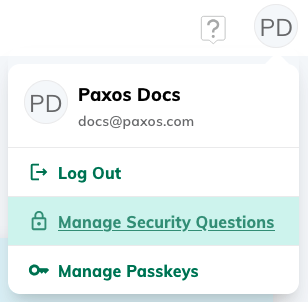
Add a secondary method of login in case you lose access to your account or change device.
Once set, the security question will be used if you need to [recover your account](#recover).
1. Go to your account preferences in the top right corner and select the security questions manager.
2. Select a question and provide a memorable answer. The answer must not include any identifying information, such as your name, nor match commonly used passwords such as 123456.
3. Write down your answer and store it in a secure place before submitting. The answer cannot be retrieved once it is set.
To change your security question, follow the steps above.
## Sign In with Passkey
Make sure you have completed [first time sign in](#first-time-sign-in-with-passkey) before signing in.
If you saved the passkey locally, make sure you use the same device to sign in.
Learn more in the [passkeys guide](/guides/dashboard/passkeys).
Go to [https://dashboard.paxos.com/](https://dashboard.paxos.com/), select **Sign In**, click the email input field then select your passkey.
If your browser does not support passkey autofill, enter your email address and click **Next**.
If required, select the appropriate passkey.
**Questions about passkeys?**
Start by contacting your IT organization. Your company may already have policies for using passkeys and can provide support when creating and using a passkey.
Paxos recommends saving and using passkeys with:
* [iCloud Keychain](https://support.apple.com/guide/passwords/passkeys-mchl4af65d1a/mac)
* [Windows Hello](https://support.microsoft.com/en-us/account-billing/signing-in-with-a-passkey-09a49a86-ca47-406c-8acc-ed0e3c852c6d#)
* [Google Account](https://support.google.com/chrome/answer/13168025)
* [1Password](https://support.1password.com/save-use-passkeys/)
* [Proton Pass](https://proton.me/support/pass-use-passkeys)
* Other third-party password managers that enable passkey synchronization across devices
Learn more about [using passkeys on the Paxos platform](/guides/dashboard/passkeys) or [try the passkey demo](https://passkey.org/) on [https://passkey.org](https://passkey.org).
### Add or Remove a Passkey
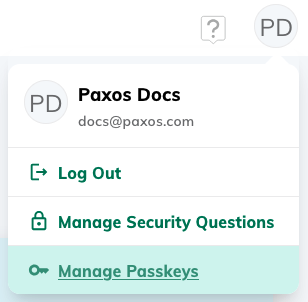
Go to your account preferences in the top right corner and use the passkey manager to add or delete a passkey.
The Dashboard supports multiple passkeys for each individual user.
However, availability of this feature depends on the technology used to create your first passkey.
If you get an error message when trying to create a new passkey, the functionality is not available for your setup.
The passkey labeled **Accessed from this browser** is the one used to log in during the current session.
You must have at least two passkeys associated with your account to enable deletion.
### Recover Account (Passkey)
1. Go to [https://dashboard.paxos.com/](https://dashboard.paxos.com/), select **Recover Account** and follow the on-screen instructions. **Keep the window open and do not navigate away from the screen**.
2. Retrieve the security code from your email to verify it is you.
3. Answer your security question.
> If you forgot your answer or never set up [account recovery](#set-up-recovery), contact [Support](https://support.paxos.com) for assistance.
1. Create a new passkey.
**Questions about passkeys?**
Start by contacting your IT organization. Your company may already have policies for using passkeys and can provide support when creating and using a passkey.
Paxos recommends saving and using passkeys with:
* [iCloud Keychain](https://support.apple.com/guide/passwords/passkeys-mchl4af65d1a/mac)
* [Windows Hello](https://support.microsoft.com/en-us/account-billing/signing-in-with-a-passkey-09a49a86-ca47-406c-8acc-ed0e3c852c6d#)
* [Google Account](https://support.google.com/chrome/answer/13168025)
* [1Password](https://support.1password.com/save-use-passkeys/)
* [Proton Pass](https://proton.me/support/pass-use-passkeys)
* Other third-party password managers that enable passkey synchronization across devices
Learn more about [using passkeys on the Paxos platform](/guides/dashboard/passkeys) or [try the passkey demo](https://passkey.org/) on [https://passkey.org](https://passkey.org).
## Sign In with SSO
Go to [https://dashboard.paxos.com/](https://dashboard.paxos.com/), select **Sign In**, enter your work email address then click **Sign in with SSO**.