> ## Documentation Index
> Fetch the complete documentation index at: https://paxos-0ac97319-jg-test-1.mintlify.site/llms.txt
> Use this file to discover all available pages before exploring further.
# Approvals
> Use Approvals to increase security and prevent mistakes on sensitive actions.
export const value_2 = "Approver: approve or reject a crypto address pending approval"
export const value_1 = "Treasurer: add or delete crypto addresses"
export const value_0 = "Entity Manager: enable or disable approvals"
Demo
**[Watch an Approvals Demo →](/images/approvals-demo.mp4)**\
Interested in Early Access to Approvals?
[Contact Support](https://support.paxos.com) to get started.
Approvals adds an extra layer of security to your most sensitive actions in the Paxos Dashboard. With Approvals enabled, certain actions require review and approval from another team member before they can be completed, helping prevent unauthorized or incorrect transactions.
## Current Approval Actions
Approvals is currently available for:
* Adding crypto destination [addresses](/guides/dashboard/addresses)
* Adding [fiat accounts](/guides/dashboard/fiat)
## Why Approvals Matter
Approvals helps your organization:
* Enhance security by requiring multiple people to review sensitive changes
* Reduce errors by adding verification steps to critical actions
* Meet compliance requirements through documented review processes
* Maintain better control over where assets can be sent
## How Approvals Work
Let's walk through an example of adding a new crypto destination address with Approvals enabled:
### ➊ Enable Approvals
**Required Permissions**
You need a role with the {value_0} permission to perform this action.
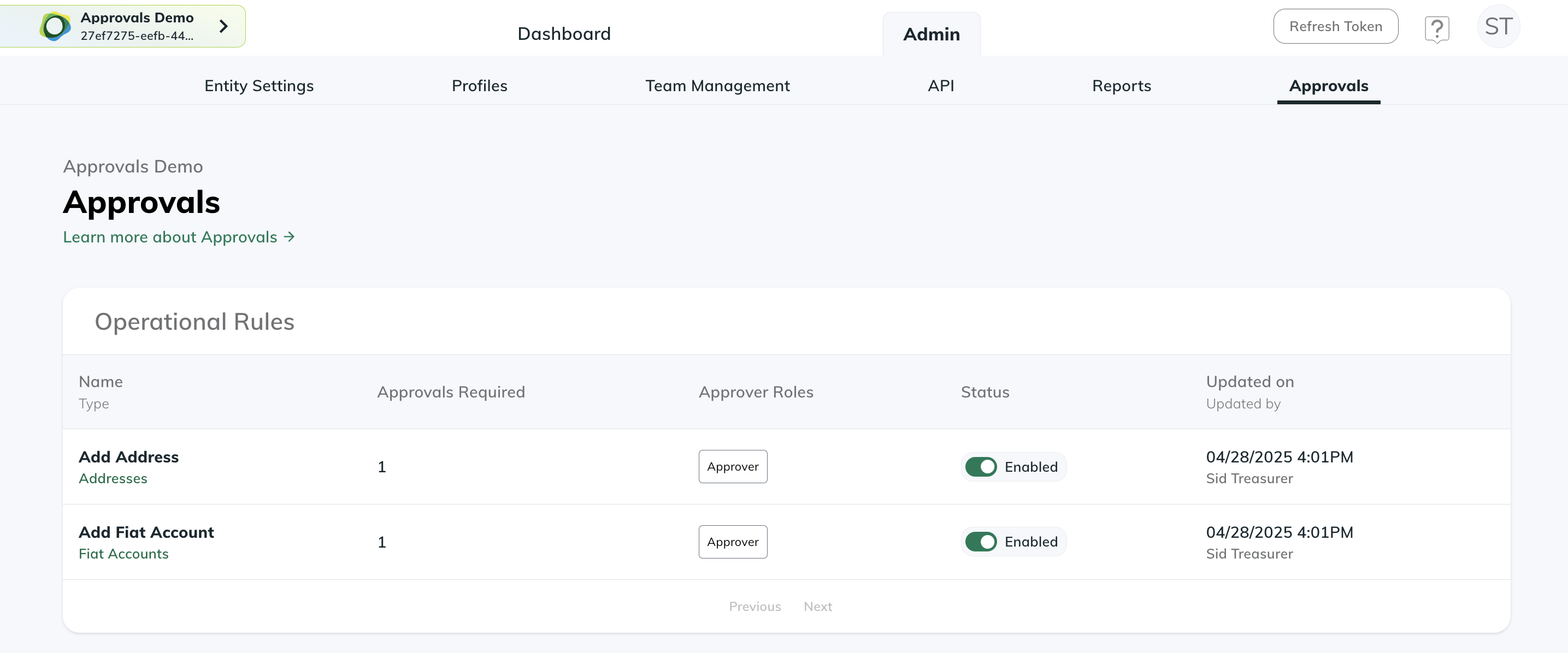
* An Entity Manager must first enable the Approvals feature for desired actions
* Go to [Admin > Approval Controls](https://dashboard.paxos.com/admin/approval-controls)
* Select "Add Address" to enable approval requirements for new crypto addresses
### ➋ Submit for Approval
**Required Permissions**
You need a role with the {value_1} permission to perform this action.
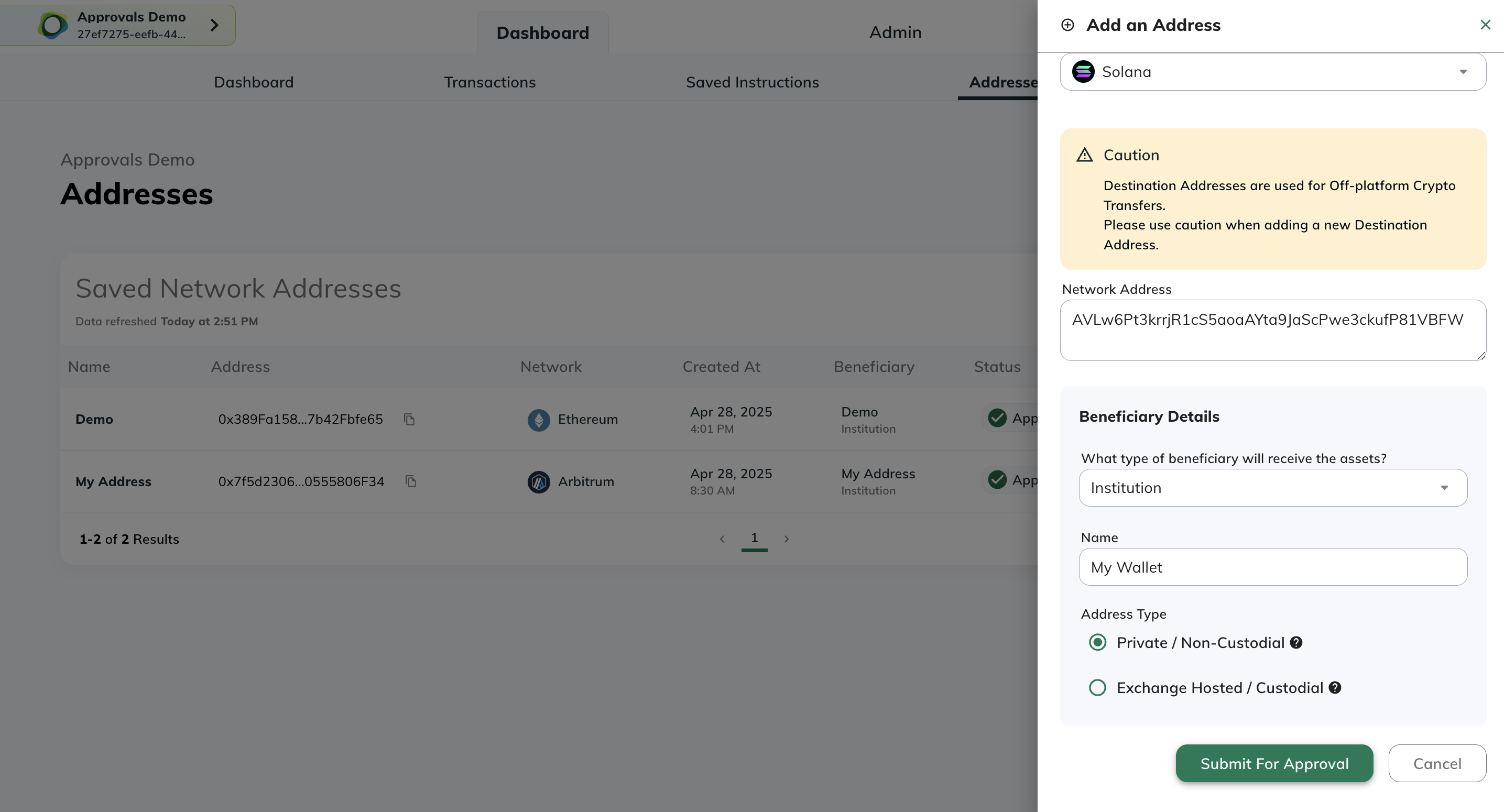
* A Treasurer submits a new crypto address following the standard [add address process](/guides/dashboard/addresses)
* Instead of being added immediately, the address is marked as "Pending Approval"
### ➌ Track Pending Approvals
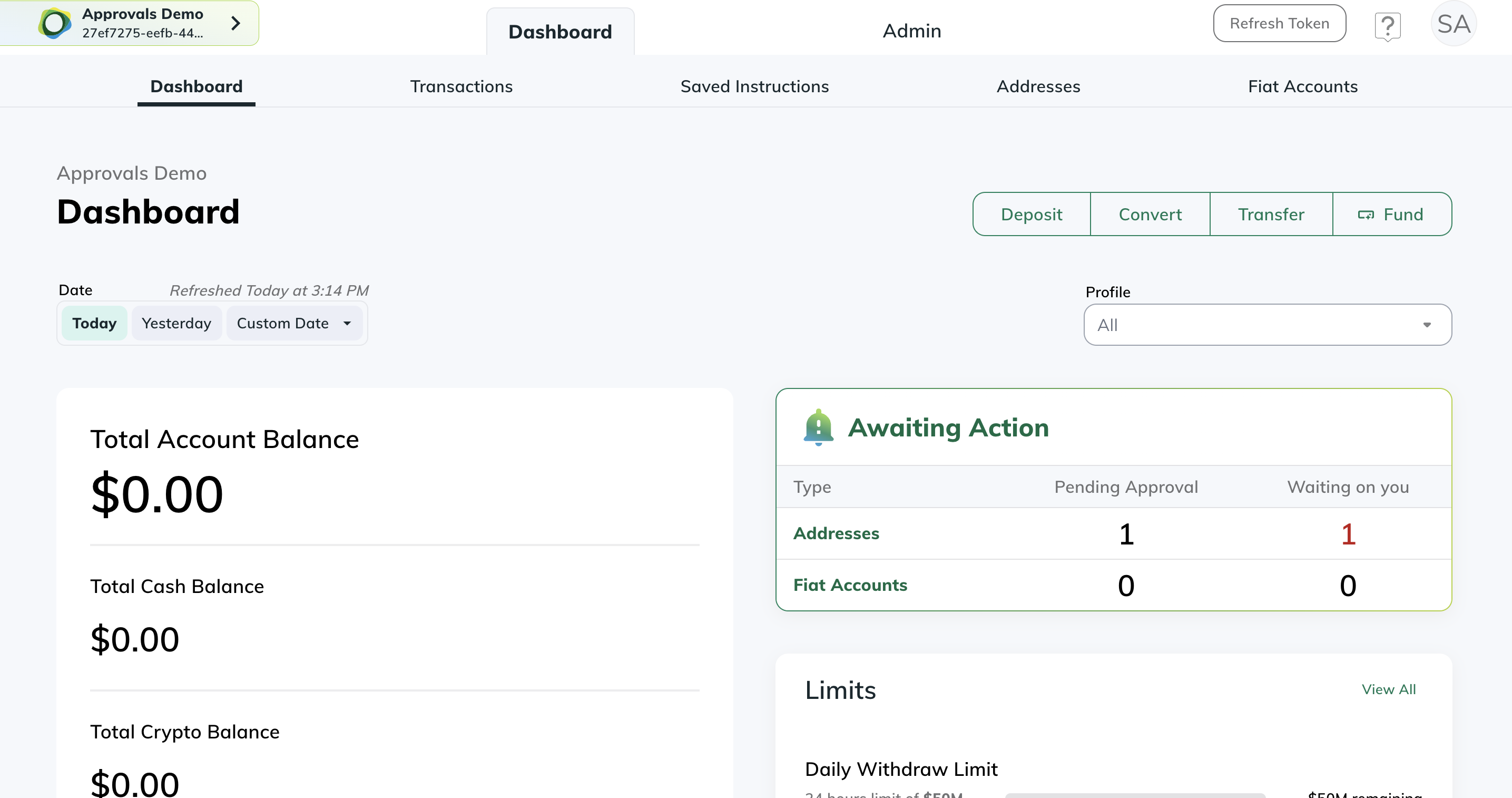
Pending approval notifications appear on both:
* The Addresses page
* The main Dashboard page
### ➍ Review and Approve
**Required Permissions**
You need a role with the {value_2} permission to perform this action.
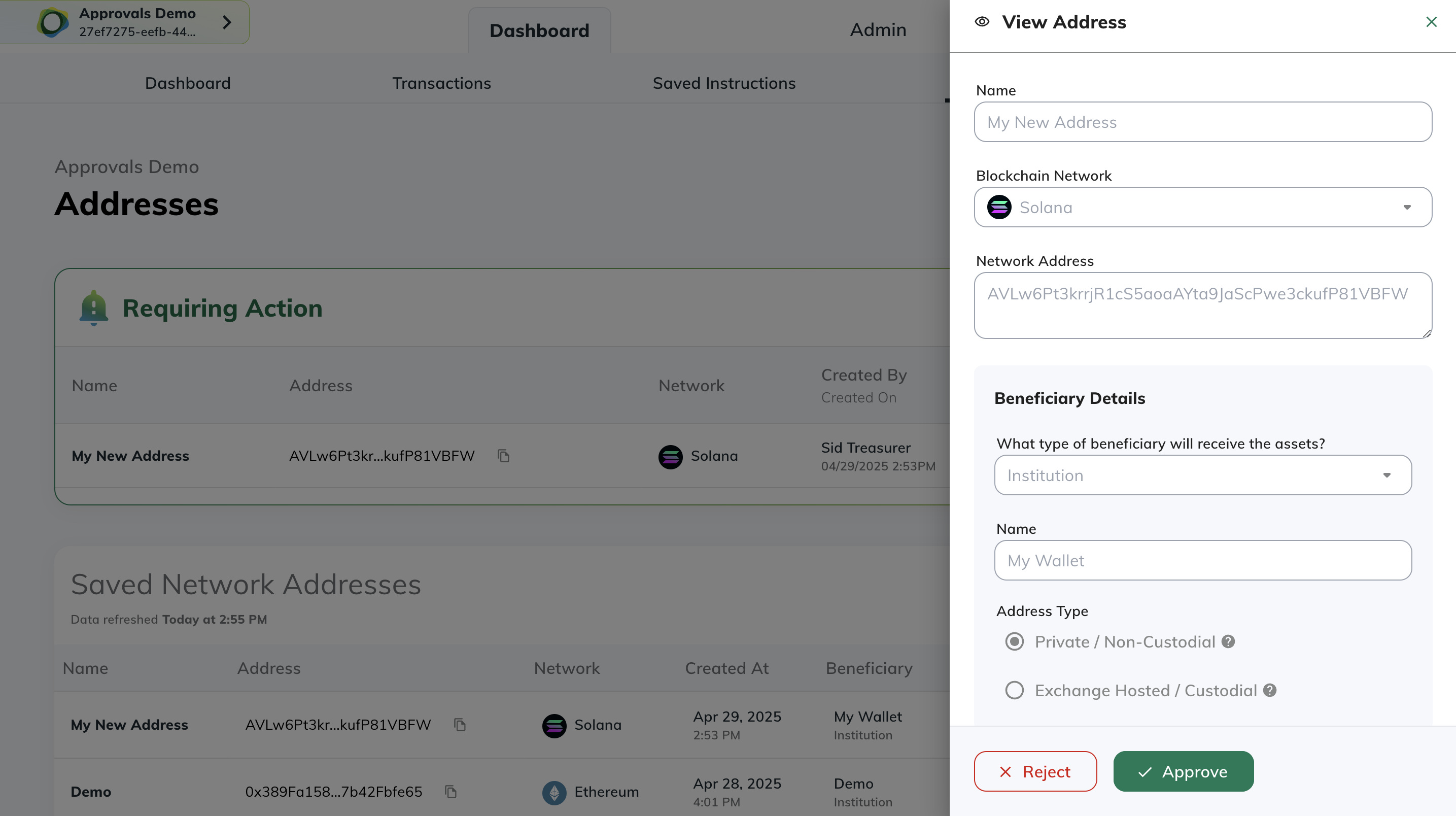
* Any user with an Approver role can review pending submissions
* Approvers can choose to:
* Approve the address - making it available for future transactions
* Reject the address - preventing it from being added
Important Notes
* Users cannot approve their own submissions
* Submitters can cancel their pending submissions before approval
* Once approved, addresses can be used like any other saved address